
Notifications
What alerts you, when, what a tap opens, and how to change each alert on web and iPhone.
LeadBind tells you when something needs you: a live call being handed over, a new lead, a booking, a callback that is due. This page covers what notifies you, when, what a tap opens, and how to change each one.
Turn notifications on
On the iPhone
- Use LeadBind for a bit. The app does not ask on sign-in. After your first win, it shows a short screen called Turn on notifications.
- Tap to continue. iOS then asks for permission. Choose Allow.
If you chose Don't Allow, open the iPhone Settings app, tap Notifications, tap LeadBind, and turn on Allow Notifications.
On the web
- Open Settings, then Notifications.
- Tap Turn on push notifications, then allow notifications when your browser asks.
If the button says Add to home screen to enable, you are on an iPhone browser. Add LeadBind to your Home Screen first, open it from there, and try again. If it says Blocked - enable in browser settings, allow notifications for the site in your browser settings.
The bell at the top right of the web app, called Notifications, keeps a list of recent alerts with a count of what you have not seen. Mark all read clears the count.
What notifies you
Settings, then Notifications, lists every alert in three groups. A switch is on when that alert sends a push to this device. Every switch saves the moment you flip it.
Calls
| Alert | When it fires |
|---|---|
| Hot transfer | Your front desk sends you a live call. |
| Urgent call | A caller has an emergency and wants a call now. |
| Missed call | A caller hung up before the front desk could help. |
| Voicemail | A caller left a voicemail. |
| Hot outcome | A call goes well. |
| Per call | A card after every connected call. Off by default. |
Leads and bookings
| Alert | When it fires |
|---|---|
| New lead | A fresh lead comes in. |
| New booking | A lead books a call. |
| Callback requested | A lead asks to be reached again. |
| Callback due | A callback you promised is minutes away. |
| Follow-up due | A follow-up step needs you. |
Account
| Alert | When it fires |
|---|---|
| Daily recap | Your dials, bookings and streak. |
| Team digest | The end-of-day rollup for your team. |
| Level up | You crossed a level on real bookings and closes. |
| Login expired | A connected portal stopped updating. |
| Phone not answering | Your line stopped taking calls. |
| Calendar disconnected | A linked calendar stopped working. |
| Billing | A card was declined or is past due. |
| Opt-out | A lead texted STOP. |
Every alert is on by default except Per call.
Note: A lead you type in yourself does not send you an alert. A big import sends one summary, not one alert per lead.
Quiet hours
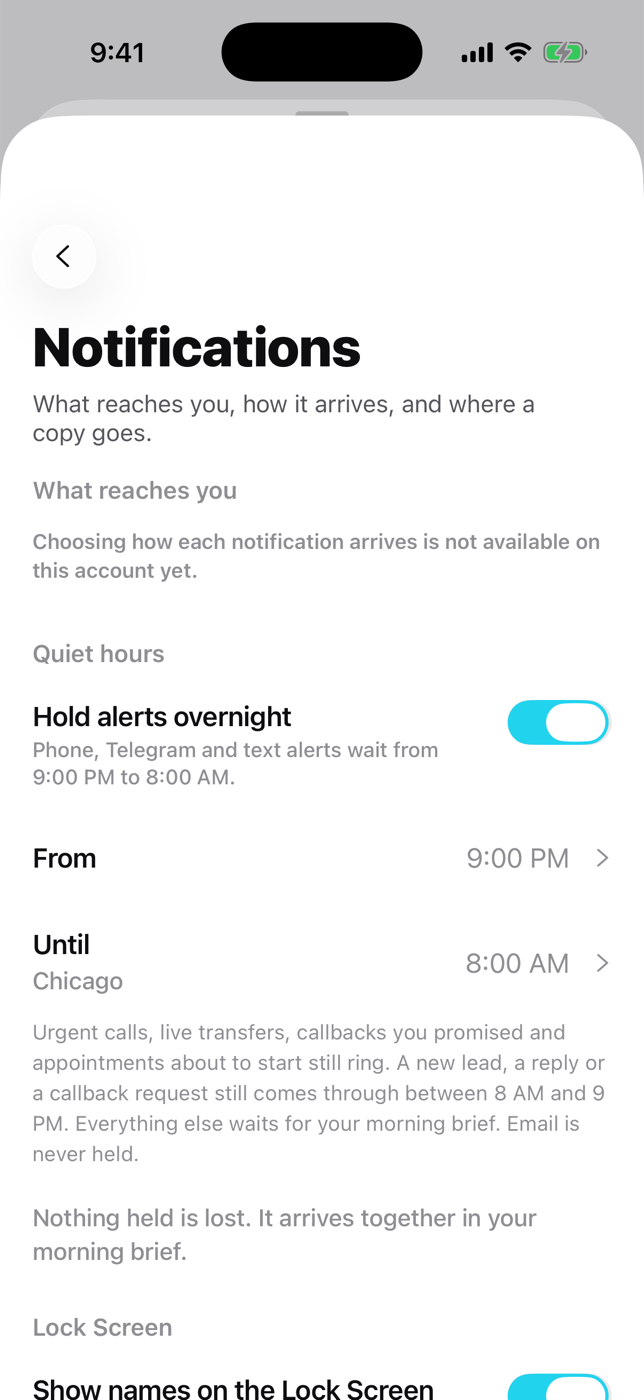
Quiet hours hold alerts overnight. Out of the box they are on, from 9 PM to 8 AM in your account's time zone.
To change them:
- Open Settings, then Notifications.
- Find Quiet hours and the switch Hold alerts overnight.
- Pick the start and end times. On the iPhone the choices are in half-hour steps.
What quiet hours do:
- Push, Telegram and text alerts wait until the morning. Email alerts are not held.
- A live transfer, a callback you promised, and an urgent call still come through.
- A new lead from a website form or an ad arrives at once, so you can call while they are still there.
- What was held shows up in your morning briefing.
Turn the switch off and alerts arrive at any hour.
Note: Quiet hours are about alerts to you. Whether LeadBind may call or text a lead is set separately, by the lead's own calling hours. See Dialer.
Get a copy somewhere else
Under Also send to, you can mirror your alerts:
- Telegram: tap Connect and follow the steps. When it says Telegram connected, every alert that is on also goes to Telegram. Disconnect stops it.
- Email: mirrors every alert that is on to your email.
The same two choices appear in the iPhone app, under Settings, then Notifications, in Where a copy goes.
What a tap opens
A tap goes to the exact thing the alert is about, not a general list.
| Alert | A tap opens |
|---|---|
| A call alert (transfer, missed, voicemail, outcome) | That call's page. See Calls and outcomes. |
| New lead | That lead. |
| New booking | Your calendar. See Bookings. |
| Callback due, Opt-out | Your leads. |
| Follow-up due | Your follow-ups. See Follow-up. |
| Daily recap, Level up | Your dashboard. See Dashboard. |
| Team digest | Your team. See Invite your team. |
| Phone not answering | Your voice agents. |
| Calendar disconnected | Your availability. See Availability. |
| Billing | Your numbers and usage. |
On the iPhone, if the app is locked with Face ID, the tap waits for you to unlock, then opens the right screen.
One alert, not three
If you use LeadBind on more than one device, the device in your hand gets the alert first. Your other devices get it a minute later, only if you have not opened it. If the same kind of alert keeps arriving close together, they are grouped so your phone is not buzzing constantly.
Names on the Lock Screen
Ordinary notifications show who the call or lead is, the way you would expect. How much shows while your phone is locked is controlled by your iPhone: Settings, Notifications, Show Previews.
LeadBind has its own setting for the Live Activities, Dynamic Island, Lock Screen widgets and Lock Screen controls. See The iPhone app.
- In the app, open Settings, then Notifications.
- Find the Lock Screen group and the switch Show names on the Lock Screen.
It is off until you turn it on. The first time you open the app, it asks Show names on your Lock Screen? with Keep hidden and Show names. With it off, a call shows as A caller and a lead as A new lead, with no phone number.
If alerts are not arriving
- Check Allow Notifications for LeadBind in the iPhone Settings app, or the site permission in your browser.
- Check that the alert is switched on in Settings, then Notifications.
- Check Quiet hours. A held alert comes in the morning.
- If you only use the Lock Screen cards, check Live Activities for LeadBind in the iPhone Settings app.
More in Troubleshooting.