
The iPhone app
Live Activities, widgets, controls, sounds, hold menus and Lock Screen privacy on iPhone.
The LeadBind iPhone app does more than the web when your phone is locked. Calls and new leads show up on the Lock Screen and in the Dynamic Island, widgets show what is waiting on you, and one tap calls the next lead. This page covers each one: how to turn it on, what it shows, and what it never shows.
The app needs iOS 26.0 or later.
Note: Live Activities, widgets and controls all live in the iPhone app. They do not exist on the web.
Live Activities and the Dynamic Island
A Live Activity is a card that stays on your Lock Screen and updates by itself. On iPhones with a Dynamic Island, it also shows there. On other iPhones it shows on the Lock Screen and at the top of the screen.
Turn them on
- Open the iPhone Settings app, tap LeadBind, and turn on Live Activities.
- In LeadBind, open Settings, then Notifications. Under the Lock Screen group, check Lock Screen updates. It tells you if Live Activities are off, on, or not set up yet.
- Keep notifications on, and open LeadBind once more if it says Not set up yet.
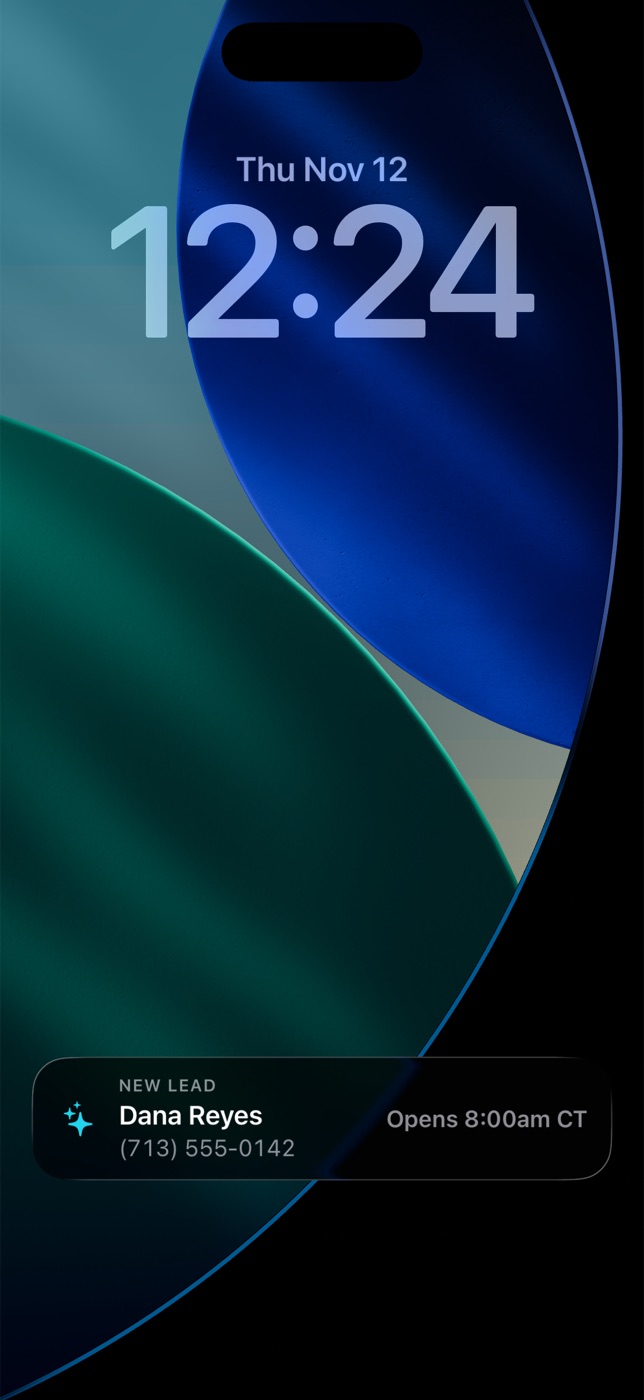
LeadBind starts these for you when a call comes in or a lead arrives. If you switch off the New lead alert, there is no new-lead card either. A lead you type in yourself, and a big import, do not start one. See Notifications.
What starts one
| What happens | What you see |
|---|---|
| Your front desk answers a call on your line | The card On your line. It steps through Answered, Talking and a result. |
| A new lead comes in | The new lead card. It steps through Arrived, Calling, Talked and Booked. |
| A lead is held by calling hours | The same new lead card, which says Outside calling hours and when the lead can be called. |
| You start a dialer session | A scoreboard with Calls, Talked and Booked, your place in the list such as "12 of 40", and a call clock. It ends with Session done. |
| You start a shift in Door mode | Knocking, with how many doors are to go, your doors, conversations and bookings, and a No answer button. It ends with Shift done. |
| An appointment is about to start | Your next appointment, in the hour before it. |
| A callback you promised is due | The callback, with a Call button for 30 minutes. |
| Mani is working on a job | The steps, such as "3 of 8", then Mani finished or Mani stopped. |
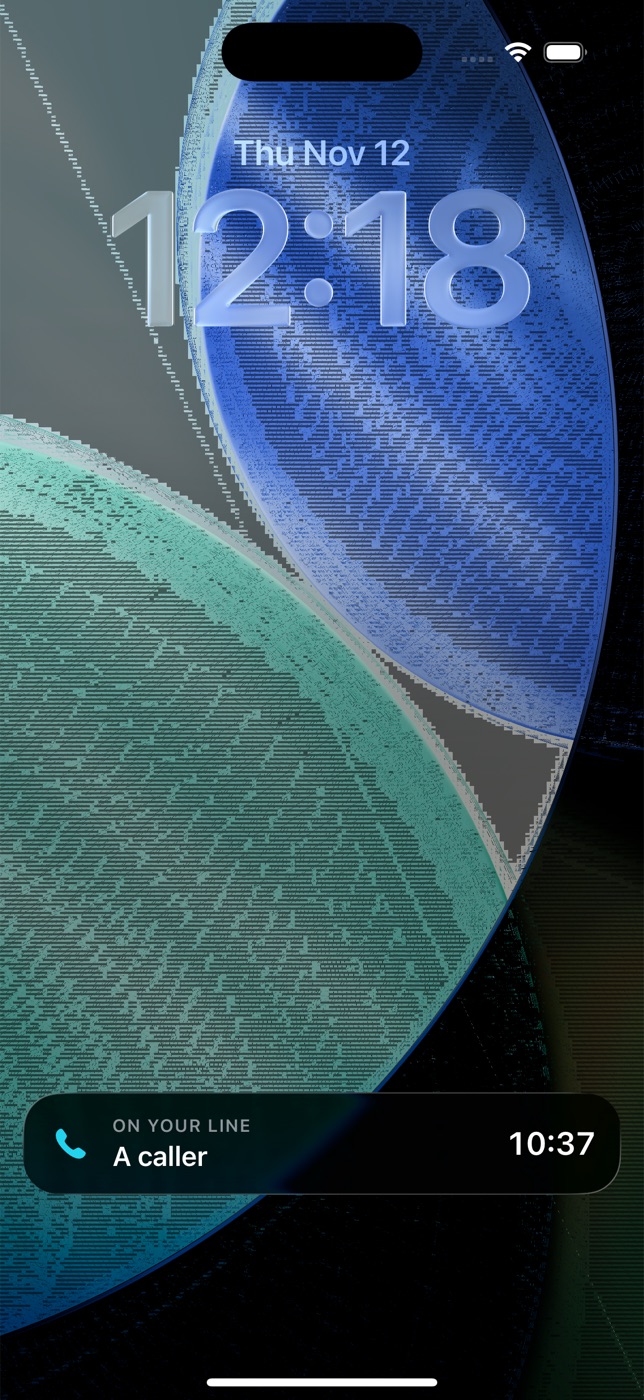
An On your line card is only for calls that come in. When the call ends, the card shows the result: Booked with the time, Wants a call back, Missed call, Left a voicemail, Sent to you, Answered, or Call ended. It stays about 10 minutes.
The buttons on them
- On On your line, Call back shows after a call back, missed call or voicemail result, if the call is tied to a lead and the lead can be called right now.
- On a new lead, Call or Call again shows only if calling that lead is allowed right now. If it is not, the card says why: No phone number, Do not call, or Outside calling hours. While someone is already on the call, the card says Mani is calling or On the call and has no button.
- A new lead card counts down to a 5 minute target to reach them, then counts up as waiting. A callback that is due says Due and then late.
- Call and Call back open the call chooser. See The call chooser.
- No answer on a Door mode card opens Door mode with an Undo bar.
A new lead card goes stale after about 30 minutes. A Door mode card goes stale two hours after its last update.
What they never show
- Names and phone numbers stay hidden unless you turn on Show names on the Lock Screen. With names off, a call card says A caller and a lead card says A new lead, with no number. A Door mode card says Next door instead of the address. Your next appointment says Your next appointment.
- Door mode cards never show distance.
- A button never promises a call it cannot make. If a lead cannot be called, there is no Call button.
Widgets
A widget is a small tile on your Home Screen or Lock Screen. LeadBind has four.
| Widget | Sizes | What it shows |
|---|---|---|
| Waiting on you | Small and medium | Missed calls and callback requests, each with a one-tap Call back. This is the first one in the list. |
| Today | Small, medium, large | Dials, Connects and Booked today. The large size adds New leads and Next up. |
| Next up | Small, medium, large | The next lead to call. Medium and large have a Call button. Small does not. |
| Streak and rank | Small and medium | Your streak in days, your level, and your rank. |
All four also come as Lock Screen widgets, in the circular, rectangular and inline shapes. The Lock Screen version of Waiting on you shows a count and the reason.
Add one to the Home Screen
- Press and hold an empty spot on your Home Screen until the icons wiggle.
- Tap + at the top left.
- Search for LeadBind, pick a widget and size, and tap Add Widget.
Add one to the Lock Screen
- Press and hold your Lock Screen, then tap Customize.
- Choose Lock Screen, then tap the area below the clock.
- Search for LeadBind and tap a widget to add it.
Good to know
- Widgets show what the app last saved. They do not look anything up on their own. The app refreshes them whenever it loads fresh data, and they refresh themselves every 15 to 30 minutes.
- If a widget says Open LeadBind once to turn this on., open the app one time.
- Waiting on you says Nobody waiting. with the number of calls answered today when nothing needs you.
- Today turns amber and says Stale if it has not updated for 6 hours.
- On the Lock Screen, names show only if Show names on the Lock Screen is on.
Control Center and Lock Screen controls
Controls are single buttons you add to Control Center or to the bottom of your Lock Screen. LeadBind has two:
- Call my next lead opens the call chooser for the lead LeadBind picks as next.
- Waiting on you opens Today.
Add a control to Control Center
- Swipe down from the top right corner of the screen.
- Press and hold an empty space, or tap + at the top left, then tap Add a Control.
- Search for LeadBind and tap a control.
Add a control to the Lock Screen
- Press and hold your Lock Screen, then tap Customize, then Lock Screen.
- Tap the buttons at the bottom of the screen, then search for LeadBind and pick a control.
There is no control that turns your front desk on or off.
Siri and Shortcuts
You can also ask Siri or build a shortcut with: Call my next lead, What did I book today, Log a knock (opens Door mode), Text my last missed call, and Open my next lead. Each one opens the app to finish the job. None of them place a call or send a text on its own.
The call chooser
Tapping Call from a card, a widget, a control, Siri or an alert opens a sheet titled "Call" and the lead's name. It lets you pick how the call goes out. Details are on Dialer. In short:
- You call: we ring your phone, then connect you. The lead sees the number you pick.
- AI calls: your AI caller places the call. Shown only when AI calling is on.
If there is only one way to call, the call goes out straight away with no sheet. A lead that cannot be called right now (do not call, closed out, or outside calling hours) shows the reason and no call button.
Sounds and haptics
Short sounds play for the moments that matter: the mic opening and closing, a call being placed, an outcome being logged, a booking confirmed, a text sent, and an error.
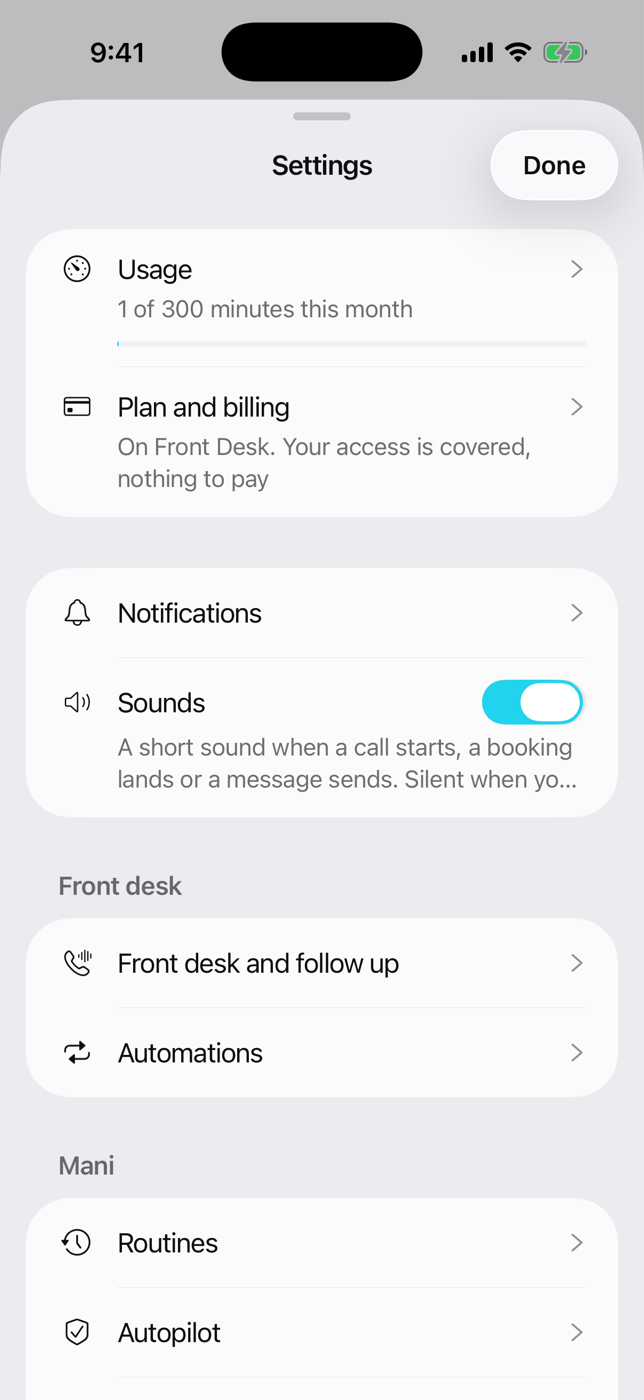
- To change it: open Settings, then Notifications, then Sounds. It is on by default.
- Sounds are silent when your iPhone's ring switch is off. They mix with whatever else is playing, and they never play during a live phone call.
Haptics, the small taps you feel, follow your iPhone. There is no LeadBind switch for them. To turn them off, open the iPhone Settings app, tap Sounds & Haptics, and turn off System Haptics. While you are on a live call, the small taps are muted, and real outcomes still tap.
Press-and-hold menus
Press and hold, instead of tapping, to get a shortcut menu.
Bottom bar. Press and hold a place to jump straight to an action:
| Hold | Choices |
|---|---|
| Today | Search |
| Inbox | New message |
| Leads | Add lead, Import leads, Dialer, Door mode (only if your account is in sales mode) |
| Calendar | New booking |
| Mani | Ask Mani, Talk to Mani |
A lead. Press and hold a lead in a list for Call, Text, Later, Copy number, Flag bad number, Mark do not call, and Delete lead. The red ones ask you first. The More button on a lead has the closing brief, email, scheduling a follow-up, flagging a bad number, and marking do not call or allowing calls again.
A row on Today. Press and hold for Open lead, Done, Snooze until this evening, Snooze until tomorrow morning, Move to Someday, and Log an outcome. See Today.
A booking on the calendar. Press and hold for Mark rescheduled, when that applies. See below.
Rescheduled appointments
When someone books a new time instead of the old one, mark the old one Rescheduled. It is not a no-show, and nothing is sent to the customer.
- Open the appointment on your Calendar.
- Tap Rescheduled, next to No-show.
- Confirm with Yes, mark rescheduled.
You can also press and hold the appointment and choose Mark rescheduled.
What it does:
- The appointment is greyed out on the calendar and says Rescheduled to the new day and time.
- It is left out of the day's count.
- It does not count as a no-show.
- A call that booked that slot now says Appointment rescheduled instead of showing the old time.
You only see Rescheduled on an appointment that has started and is still open. See Bookings.
Names on the Lock Screen
This one setting decides whether Live Activities, the Dynamic Island, Lock Screen widgets and Lock Screen controls can show who is calling or who the new lead is. It does not change the notifications themselves. For those, see Notifications.
- Open Settings, then Notifications.
- Find the Lock Screen group and turn on Show names on the Lock Screen.
It is off by default. The first time you open the app, it asks Show names on your Lock Screen? with Keep hidden and Show names.
With it off, a call shows as A caller and a lead as A new lead, with no phone number.
Tip: Your iPhone can also hide names while it is locked. That is in the iPhone Settings app, under Notifications.
Permissions the app asks for
The app asks for each one only when you use the feature:
- Notifications: for alerts. See Notifications.
- Location: only while Door mode is open, to find the closest door.
- Camera: to scan a QR code to log in on a computer.
- Microphone: for voice features, such as Talk to Mani.
- Face ID: to unlock the app, if you turn that on.